
Hardware vs. Software Encoding: The Core of Remote Desktop Smoothness
What actually makes a remote desktop session feel good? Is it the internet? The computer you're connecting from? Or is it the way your main PC talks back to you? The fundamental difference between a session that just works and one that drags its feet often boils down to how your host PC handles video encoding. We're talking about whether it uses dedicated hardware, like NVIDIA's NVENC or Intel's Quick Sync, to compress the video stream, or if it leans on the main CPU. For anyone curious about why some remote tools feel lightning-fast while others are better for just checking email, understanding this difference is key. It directly affects how responsive and clear your remote screen ends up being.
What is Video Encoding, and Why Does It Matter for Remote Desktop?
What is video encoding, really? Think of it like this: your computer screen is constantly changing, sending out a huge stream of individual pictures. Video encoding is the trick that takes all those big pictures and squishes them down into a tiny package, without losing too much of what you actually see. This compression isn't just nice to have; it's essential. Raw video data, especially with high-resolution screens and quick movements, is simply too much information to send efficiently across any network.
For a remote desktop, this means every single pixel shift on your host PC's screen has to be caught, encoded into that compact video stream, shot over the internet, and then decoded by whatever device you're connecting from. The speed and efficiency of this whole encoding process directly decides how fast your mouse clicks or key presses show up on your screen. If the encoding is slow, or it's not doing a good job, the picture you get will lag behind what you're doing. This shows how encoding isn't just a technical detail; it's the gatekeeper for how quickly you see what you're doing.
The specific video codec—the algorithm used for this squishing and unsquishing—also plays a big part. Common ones include H.264 (AVC), H.265 (HEVC), and the newer AV1. Each one has its own way of balancing how much it can compress against how much computer power it needs. A codec that's more efficient can deliver a better-looking picture with less data, meaning your network doesn't have to work as hard. For you, this means a clearer image and less network slowdown, especially if your internet connection has limited upload headroom. This shows how choosing the right codec can make a big difference in how well your remote session performs, whether you're on a fast connection or one that's a bit more constrained.
The Core Difference: Hardware vs. Software Encoders
The biggest difference between hardware and software encoding is where the real work gets done. Software encoding uses the main brain of your host PC, its CPU, for all those complex math problems that turn video into data. It's flexible, sure – almost any computer with a CPU can do it. But let's be honest, video compression is a heavy lift. Giving your CPU that much to do can slow down everything else your computer is trying to accomplish. This shows how a software-encoded session might feel sluggish, or make your host PC struggle with other tasks, especially if it's an older or less powerful machine.
Hardware encoding, on the other hand, gives the video compression job to specialized parts built right into your graphics card or, sometimes, your CPU itself. NVIDIA GPUs have NVENC, AMD GPUs use AMF, and Intel CPUs often come with Quick Sync Video. These dedicated pieces of hardware are made for one thing: encoding video, and doing it fast and efficiently. They use way less power and CPU resources than software. For you, this means a lot less delay and a much smoother experience, because the encoding isn't bogging down your main system. It's like having a dedicated express lane for video data, instead of making it fight with all the other traffic.
Now, the catch for all that superior hardware performance is that you need the right hardware. You'll need a compatible graphics card (or an integrated GPU with encoding smarts) in your host PC for this to even be an option. If your host system doesn't have it, or your remote software can't use it, then you're stuck with software encoding. This shows why, if you're chasing the best possible remote desktop responsiveness – say, for gaming or editing video – a host PC with a modern, discrete graphics card that can do hardware encoding is non-negotiable.
Consider what this means for your session: a system using hardware encoding can typically pump out more frames per second with less delay, all without breaking a sweat on your host PC. The result is a more fluid and immediate picture. But a system stuck with software encoding might show a noticeable lag, particularly when a lot changes on screen quickly, as the CPU tries to juggle encoding with everything else. This highlights how the choice of encoder isn't just a technical spec; it's the core of how your remote session feels, whether it's a quick chat or a frustratingly slow conversation.
The Impact on Your Remote Session: Latency and Quality
Latency, what most people call 'lag,' is the gap between when you click your mouse and when you see something happen on your screen. Encoding is a huge part of this equation. Hardware encoders process video frames much, much faster than software encoders. This directly cuts down the time it takes for your host PC to compress and send that visual update. This swift processing means your remote session feels more direct and responsive, making things like precise mouse movements in design software, or split-second reactions in a game, a lot easier. The impact for you is a more immediate and satisfying interaction with your remote machine, cutting down on that annoying feeling of waiting for the screen to catch up. This shows how a good encoder makes your remote PC feel like it's right there in front of you.
Visual quality – how sharp, how accurate the colors are, and whether you see those ugly blocky distortions – is also heavily shaped by the encoding method. While software encoders can achieve very high quality, especially if they have plenty of time and fewer frames to worry about, hardware encoders are built to hit a sweet spot: speed and quality, together. They give you consistently good-looking visuals even when things are moving fast, which is crucial for dynamic content. What this means for your eyes is that a hardware-encoded stream will generally look cleaner and more detailed, especially when there's a lot of action, keeping the original image true. It's not just about seeing; it's about seeing clearly, whether that's a spreadsheet, a design, or a game.
Bandwidth efficiency, or how much internet data is needed to send the video, is another big deal. Better encoding means you can send a higher-quality stream using the same internet connection, or keep decent quality even if your connection isn't top-tier. Hardware encoders are often tuned to get great compression ratios at high speeds, which helps keep your network usage in check. This directly benefits you by making sure your remote session doesn't hog all your internet, leaving enough upload headroom for other things, or letting you keep a solid connection even on slower networks. This shows how an efficient encoder helps prevent buffering or a drop in visual quality due to a busy network. It's about getting the message across clearly and economically.
When Software Shines, When Hardware Dominates
Software encoding definitely has its place. It shines when you need universal compatibility, or when getting the absolute best quality at low frame rates is more important than speed, and a little delay isn't a big deal. For instance, if you're connecting to a server that doesn't have a dedicated graphics card, or a virtual machine where hardware pass-through isn't set up, software encoding might be your only path. It also works well for things like managing files, typing documents, or looking at static papers, where the screen doesn't change much and small delays aren't even noticeable. Tools like Chrome Remote Desktop often rely on software encoding, offering wide access across all sorts of hardware. For you, this means software encoding is a reliable backup for systems without powerful graphics cards, making remote access possible even if it's not perfect for every situation.
However, for any task that truly needs quick updates, minimal delay, and smooth interaction, hardware encoding is the clear winner. This covers remote gaming, editing video, CAD (Computer-Aided Design), or any professional application where precise visual feedback and instant response are critical. Modern remote desktop tools like Parsec and Moonlight (for NVIDIA GameStream) are great examples of systems that lean heavily on hardware encoding to deliver performance that feels almost like you're sitting right in front of the machine. Your experience with these types of applications will be vastly improved by hardware encoding, making the remote session feel much closer to working directly on the host machine. It's the difference between a real conversation and a game of telephone.
The trade-offs here are significant. Software encoding offers broad compatibility, but relying on the CPU can introduce noticeable delays and eat up valuable system resources. This can lead to a sluggish host PC and a choppy remote experience. You might see stuttering video or feel your input lag, especially on older systems or when doing heavy work. Hardware encoding, on the other hand, delivers exceptional speed and efficiency, taking the load off the CPU and giving you a smoother, more responsive remote session. This means a more fluid picture and quicker feedback to your input, but it does require your host PC to have a capable graphics card. This shows how the choice impacts everything from your PC's performance to your own patience.
Choosing between the two ultimately comes down to what you need and what your host system can do. If you're just doing light work remotely and don't have a powerful GPU, software encoding is a solid, accessible choice. But if you need a high-fidelity, low-latency experience for gaming or serious creative work, then putting your money into a host PC with strong hardware encoding capabilities will make a dramatic difference in your remote desktop performance. Understanding these distinctions helps you know what to expect from your remote sessions and how to best set things up.
Beyond Encoding: Other Factors for Remote Smoothness
While encoding is a huge piece of the puzzle, it's not the only thing that decides if your remote desktop feels smooth. Network conditions—specifically latency (how long it takes data to go back and forth) and available bandwidth (how much data can be sent at once)—are just as critical. Even the fastest encoder can't fix a slow or jammed-up network. A connection with high latency will cause delays no matter how fast the video is compressed. This shows how even with the best hardware encoding, a poor internet connection will still lead to a less responsive session. For instance, an informal founder test in July 2026, using a Windows gaming PC host and a browser client on the same laptop connected via a US mobile hotspot, showed about 10ms of added latency compared to home Wi-Fi. This simple test illustrates plainly how network conditions influence responsiveness.
The device you're connecting from also matters a lot. Even if your host PC is sending a perfectly encoded, fast-moving stream, your connecting device needs enough power to decode that stream efficiently and show it without stuttering. Older phones, tablets, or very basic laptops might struggle to decode high-resolution, high-frame-rate video. This means the bottleneck could be at your end, not the host's. This shows how a balanced setup, with a capable client device, is necessary to actually get all the performance benefits of advanced encoding from your host. Think of your remote experience as a chain: every link needs to be strong, or the whole thing feels weak.
Beyond the network and your client hardware, the remote desktop software itself plays a big role through various optimizations. How your mouse and keyboard input is handled, for example, can massively affect how responsive things feel. Dedicated, low-latency channels for input data, kept separate from the main video stream, can make sure your clicks and key presses register almost instantly, even if the video itself is a bit behind. Axiom, for instance, ensures mouse and keyboard input travels on a dedicated low-latency channel, separate from file transfers and other traffic, giving you a more immediate feel. This separation prevents big file transfers or other background noise from getting in the way of your direct interaction.
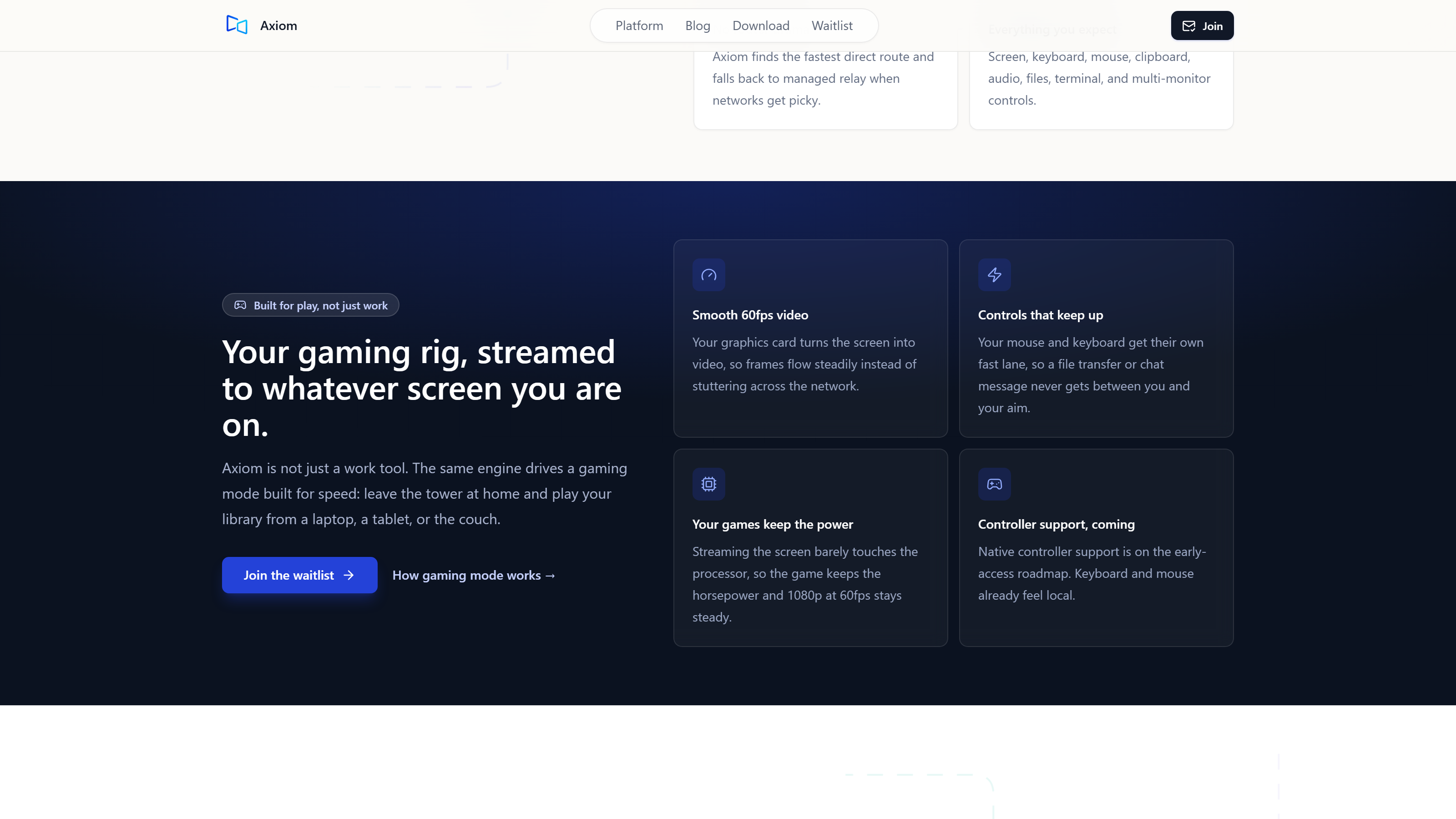
Furthermore, the software's ability to adjust to changing network conditions, its choice of video codecs, and its overall rendering process all add up to the final user experience. Features like a direct connection between devices when networks allow, with an automatic switch to relay servers if a network blocks the direct path (which happens a lot in strict Wi-Fi environments, like hotels, campuses, or with CGNAT), make things more reliable and perform better. Axiom's gaming mode targets smooth 60fps video, using the host PC's graphics card for encoding, aiming for 1080p at 60fps. This is a design target achieved with hardware encoding on a discrete-GPU gaming PC. These combined elements work together to deliver a fluid and dependable remote session, showing plainly that a complete approach, looking beyond just encoding, is essential for truly excellent remote desktop performance. It's not just one piece; it's the whole system working together.
Common questions
Does Axiom use hardware or software encoding?
Axiom's gaming mode is built to use your host PC's graphics card for hardware encoding. It targets smooth 60fps video at 1080p. This design choice aims to give you a responsive and high-quality experience, especially on gaming PCs with discrete GPUs. If hardware encoding isn't available, the system will adapt, though performance might not be as quick.
Are my Axiom remote sessions secure?
Yes, all Axiom sessions are encrypted to keep your data safe while it moves across the internet. Plus, you only need to install Axiom once on your Windows PC to get a short numeric connect ID. You then connect from any modern browser by typing that ID and an access password; no client app installation is needed on your connecting device. You also never need to mess with port forwarding or router settings for setup.
What remote desktop features does Axiom offer?
Axiom gives you full remote desktop features. This includes clipboard sync and audio streaming, with a terminal on eligible plans. File transfer and recording are unavailable in the current release. It also handles multi-monitor setups, so you can see and use all the screens connected to your host PC. Controller passthrough is available on compatible Gaming and Edge setups with the ViGEmBus host driver, but it hasn't shipped yet.
Axiom
Experience the difference hardware encoding makes with Axiom
Axiom is built for technically curious users who want a responsive remote desktop. Our early access program is open now, with a free tier planned for personal use and launch discounts for early testers. We're a small team, and the founder writes this blog.