Fixing Family Computers Remotely: Avoiding the Setup Nightmare?
What's harder than fixing your own computer? Trying to fix your family's PC, especially when you're not in the same room. Is it the actual problem you're solving? Or is it the twenty minutes you spend just trying to get connected? Let's be honest, the real nightmare isn't the broken software; it's the initial setup. Getting past firewalls, wrestling with router settings, or walking someone through a software install over the phone — that's where most remote support calls die. But it doesn't have to be that way. Modern remote desktop tools are built differently now. They focus on making that first connection easy, asking for little more than a simple ID and password on the remote machine, and letting you connect right from your web browser. This changes a stressful support call into a clear path for getting things done, without the usual roadblocks.
Why is Remote Family Tech Support So Hard?
Trying to help family with computer issues from a distance can feel like you're trying to drive through a city with every street blocked off. The core problem is how networks are built and secured. Your home router, just like the one your family uses, and your internet provider — they're all running firewalls and Network Address Translation (NAT). That's good for security, keeping unwanted traffic out, but it also means they block direct connections. So, if you want to get to your family's PC directly, you're usually stuck needing to open specific 'ports' on their router. This shows how security, while necessary, often becomes the biggest roadblock for remote help.
For your family members who aren't tech-savvy, trying to explain "port 3389," "TCP/UDP," or how to log into their router's admin page is a non-starter. Even just installing a specific application can become a huge hurdle if they hit an unexpected prompt or need administrative access. This setup overhead not only leads to frustration for everyone involved, but it also often makes an in-person visit seem like the only real option, no matter how far away you are. This shows how the tooling, not the tech, is the real problem.
On top of that, everyone uses different operating systems and devices. If you're on a Mac and they're on Windows, or vice-versa, finding one tool that just works for both without needing specific software on each end can be tough. This lack of a simple, universal way to connect just adds to the initial setup pain, lengthening the time until you can even start diagnosing what's actually wrong with the computer.
Traditional Remote Desktop Solutions and Their Trade-offs
Plenty of tools out there can get you onto another PC. TeamViewer and AnyDesk are solid choices, no question. They've got a lot of features, and they work across different computer types. You install their software on both ends, swap an ID and password, and you're in. That's a powerful setup. But for your average family member, asking them to install one piece of software is tough enough; asking for two, or having them deal with warnings about 'commercial use' when they're just trying to get help, can be a real headache. This shows how even good tools can create friction where you least need it.
Another option is Chrome Remote Desktop, which leans heavily on the browser. You need the Chrome browser on both ends, plus an extension. This simplifies things for the person helping, but it still means a specific browser and an extra extension on the remote PC. Not everyone wants to live in the Google ecosystem, and while it's fine for basic support, its features aren't as robust as some of the dedicated commercial options.
These tools generally bypass direct network configuration by sending traffic through their own relay servers. This is a huge plus, meaning you usually won't need to open ports yourself. However, the performance and reliability can sometimes depend on how good and how close these intermediary servers are. This introduces potential latency. For instance, if you're trying to do something that needs quick visual feedback, a longer relay path might introduce slight delays. This shows how the path you take to connect can impact responsiveness.
Simplifying Access: A Modern Approach to Family Support
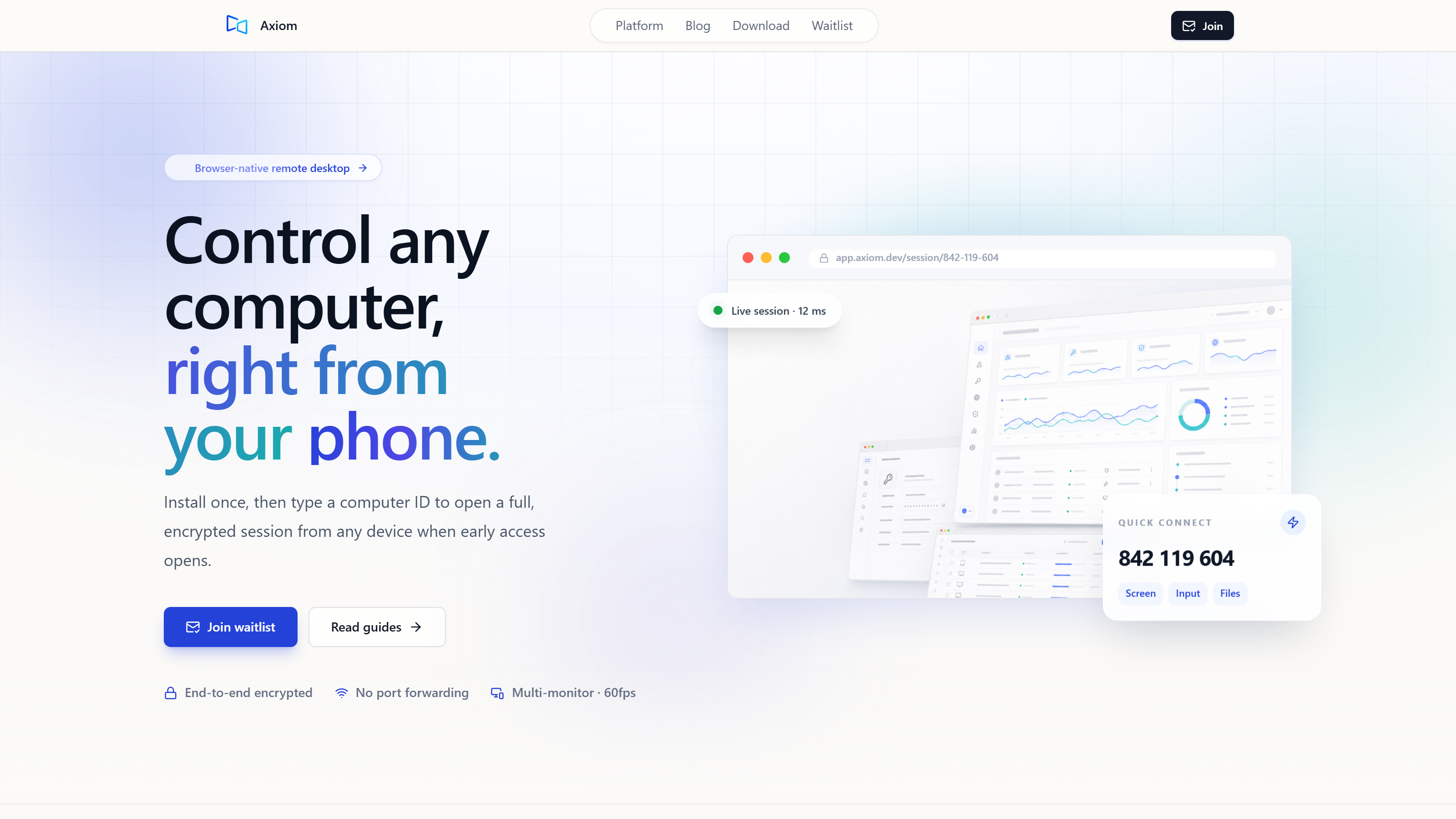
Newer remote desktop solutions are popping up that really focus on making things easier, especially for family tech support. Axiom aims to solve that setup nightmare by using a 'single installation, browser access' model. You install Axiom once on the Windows PC you want to reach, and then that machine generates a short connect ID. This means your family member only has to do one installation, then just give you a simple number, skipping the confusing IP addresses or complex network settings. This shows how a little upfront simplicity saves a lot of hassle later.
Once that host software is installed, you, the person helping, can connect from any modern browser. You just type in that ID and a password. This means you don't need to install an app on your end — whether you're using your laptop, a tablet, or another desktop. Consequently, you can use almost any device you already own, without needing to install specific client software yourself. This offers flexibility and significantly lowers the barrier to entry for giving quick assistance.
The real trick to dodging setup headaches is how a tool handles the network. Axiom doesn't ask you to mess with port forwarding or router settings — ever. It's designed to figure that out itself. It tries to make a direct connection between your device and their PC first. If that works, you get the lowest latency, like a straight shot down the highway. But if the network blocks that direct path — which happens all the time in places like strict Wi-Fi environments, hotels, college campuses, or with certain internet setups — Axiom automatically switches to its own relay servers. This means whether your family member is at home, on vacation, or dealing with a strict internet provider, you can always get connected. This shows how crucial it is to have a tool that adapts to whatever network conditions are thrown at it.
All sessions are encrypted. This provides a secure channel for your remote support tasks, protecting sensitive information like passwords or personal files that might be visible during a support session. This security measure is fundamental for maintaining privacy and trust when accessing someone else's computer.
Beyond Basic Access: Features for the Tech-Savvy Helper
While getting connected easily is paramount, a remote desktop tool also needs solid features. For those of us who frequently help with more demanding tasks, full remote desktop capabilities are essential. Axiom includes clipboard functionality, so you can easily copy and paste text or files between machines. It also streams audio, so you can hear system sounds, and has robust file transfer capabilities for moving documents or installers. This shows how the right tools empower you to do more than just view a screen.
For troubleshooting or more advanced tasks, a terminal feature is often invaluable, giving you command-line access. Multi-monitor support is also included, meaning if your family member uses multiple displays, you can view and control them all, just as if you were sitting in front of the machine. These features empower you to perform a wide range of support tasks without limitations.
When performance really matters — say, you're showing someone how software works, or even doing some light remote gaming — Axiom has a dedicated 'gaming mode.' This mode aims for smooth 60fps video, using the PC's graphics card to make things run efficiently. We're talking a fluid experience here. On top of that, your mouse and keyboard clicks travel on their own fast lane, separate from things like file transfers or other background traffic. This keeps your commands feeling quick and responsive, even if you're moving a big file around at the same time. I did a quick test myself: I saw about 10ms of extra latency when I streamed it over a phone hotspot compared to my home Wi-Fi, using a Windows gaming PC as the host and a browser on the same laptop. This was in the US, back in July 2026. This shows how the system is built to keep things snappy, even on less-than-perfect connections.
Common questions
Do I need to install software on my computer to connect?
No, you don't. With Axiom, you connect from any modern browser. Just enter a short connect ID and access password. This means you can use your existing web browser on any device, without needing to install a dedicated client application.
Will my family member need to configure their router?
Absolutely not. Axiom is designed to work without any port forwarding or router configuration. It handles network traversal automatically, trying direct connections first and then falling back to relay servers through the internet when direct paths are blocked by firewalls or other network restrictions.
Is remote support secure with this method?
Yes, all sessions are encrypted. This ensures that all data exchanged during your remote support session—including screen visuals, keyboard input, and file transfers—is protected from unauthorized access. Security is a core component of how the connection works.